


Google Authenticator
3.823.09K Reviews
App Specs
- Version
- Varies with Device
- Updated On
- License
- Free
- Downloads
- 100,000,000+
- Developer
- Google LLC
- Categories
- Tools
- Platform
- Android, iOS
Screenshots
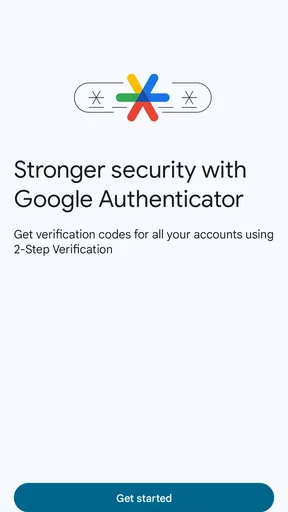
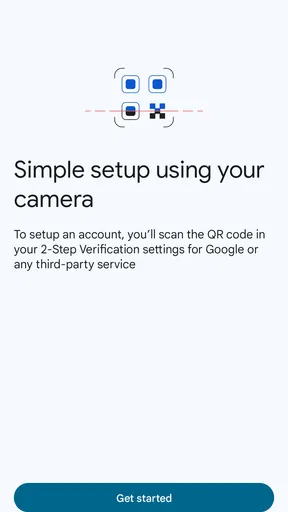
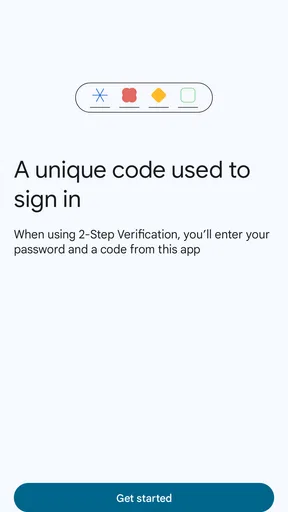
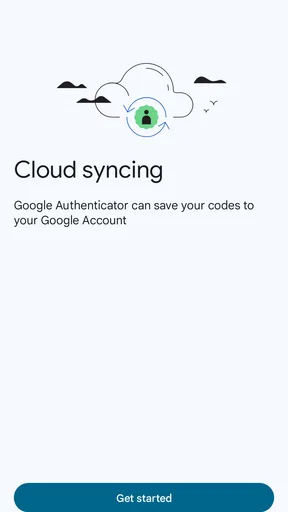
 Analysis by AppCompare
I find authenticator apps most valuable at the moment they prevent: signing in with a password that has been exposed or reused. Google Authenticator is a focused security tool from Google LLC, and its job is to give you a second code to enter when a supported account asks for one. It is free, rated for Everyone, and has been available since 2012. With more than 100 million installs and an average rating of 3.8 from around 633,000 ratings, it is a familiar option, though popularity alone does not make it the right fit for every login routine.
Where setup tends to snag
The first confusing moment often happens before the app itself is involved: people install it but have not yet enabled two-step verification on the account they want to protect. The service’s security settings usually guide that process and show a QR code or setup key. I would keep that page open while adding the account, and make sure I am configuring the intended login rather than scanning a code from an unrelated screen.
After scanning, I would test the new code on the service before closing its setup flow. That small check matters: if the account does not accept the code, you can still revisit the enrollment steps while the security page is open instead of discovering a problem the next time you urgently need to sign in. If scanning is awkward, some services offer a text setup key as an alternative; use the option shown by that service rather than trying to guess what the app needs.
It also helps to distinguish the app’s role from the account’s. Google Authenticator generates codes, but the website or service decides whether to accept them and what recovery steps it offers. If a login page is asking for a code, first confirm that you selected the correct account entry in the app. Several entries can look similar when you have multiple personal, work, or family logins, so clear account labels are more useful than relying on memory.
Using codes with fewer surprises
Have you ever found yourself struggling to keep track of all those pesky passwords? Let me tell you, I can totally relate. That's where Google Authenticator comes in. This nifty little app has been a lifesaver for me when it comes to securing my online accounts. Let’s dive into what makes Google Authenticator a must-have for anyone serious about security.
I know what you're thinking: "Another app to download? Really?" But hear me out. Two-factor authentication (2FA) is becoming essential, and Google Authenticator makes it incredibly easy. It works by generating a time-based one-time passcode (TOTP) that you use alongside your regular password. This extra layer of security means that even if someone gets a hold of your password, they're not getting in without that code.
Getting Started
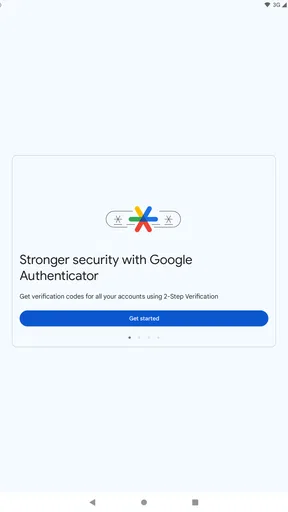
Setting up Google Authenticator is a breeze. Just download the app from your App Store or Google Play, and you're ready to roll. Once you've got it installed, you simply scan a QR code from the website or service you want to secure. It’s like magic—easy, quick, and effective. Before you know it, you’re generating codes like a pro.
Worth Reading Before You Choose

Flipboard Shows What News Apps Must Do Beyond the Feed

Switching to Android Auto Means Rethinking Your Driving Routine

Google Calendar Makes a Crowded Week Easier to Manage

Ludo King Makes the Most of the Minutes Between Plans

Baby Panda World Brings Quick Play to Modern Phones, but Its Game Library Feels Busy

ESPN’s Live Game View Makes Following Close Games Easier
Using the App
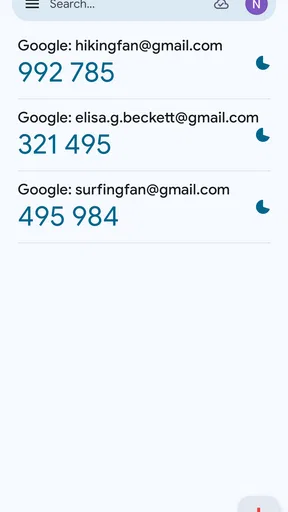
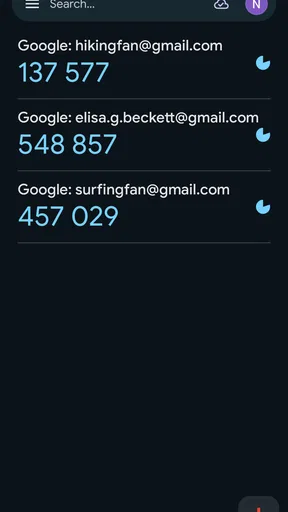
The interface is clean and simple. You open the app, and all your accounts are listed with their corresponding codes. No fuss, no clutter. The codes refresh every 30 seconds, which might sound stressful, but trust me, it becomes second nature. You’ll feel like a secret agent every time you log in!
One thing to note is that Google Authenticator is offline. That means you don't need an internet connection for it to work, which is a huge bonus if you're traveling or in an area with spotty service.
Keeping access recoverable
Now, let's be real for a second. While Google Authenticator is fantastic, it does have a couple of quirks. For instance, if you lose your phone, you could find yourself in a bit of a pickle. It’s a good idea to keep backup codes or use the app’s transfer feature to switch devices safely.
Before changing phones, I would check both the authenticator app and each account’s own recovery options. A transfer feature can help move entries to a replacement device, but it is not a substitute for the recovery codes provided by individual services. Store those codes somewhere you can reach if your phone is unavailable, and do not keep the only copy on that same phone. For a work account, I would also check whether an administrator has a recovery process, rather than assuming a personal backup method will apply.
If you are signing in while traveling, the offline codes can be especially useful when mobile data is unreliable. The practical catch is that offline generation does not solve every login obstacle: the service still needs to be reachable, and you still need the right account entry and a current code. I would open the app before starting a time-sensitive sign-in, identify the correct entry, and enter the code promptly instead of waiting until the final moments of its countdown.
Also, it doesn't sync across devices, which might be a bummer if you juggle multiple gadgets. But honestly, these are minor trade-offs for the added security peace of mind.
When a code fails
A rejected code does not automatically mean the app is broken. I would first check whether I am using the entry for the exact service and account I am trying to access, then request a fresh code and enter it without delay. If the phone’s clock has been set manually or is noticeably out of step, correcting its date and time settings may help with time-based codes. Avoid repeatedly guessing: the service may limit attempts, and repeated failures can make a routine login more stressful.
If the code still fails, return to the service’s sign-in and recovery instructions. The site may be asking for a different verification method, or the authenticator entry may no longer match the account’s current setup. Use the service’s official recovery route rather than deleting entries at random; removing the wrong one can make a difficult situation harder to fix. Once access is restored, re-enroll carefully and test the replacement code before leaving the setup page.
Choosing the right fit
Compared with receiving a login code by text, an authenticator app can be more practical when you lack a reliable mobile signal, since the code is generated on the phone. It is still not a universal replacement for every security method: the service must support authenticator codes, and you need to keep the device and recovery details safe. A built-in password manager or another authenticator may suit someone who prioritizes keeping sign-in tools together or using several devices, but that convenience depends on the option’s own security and recovery design.
I think Google Authenticator suits people who want a straightforward way to add codes to accounts and do not mind managing device changes deliberately. It is also a sensible choice for someone who signs in from places where text messages are unreliable. I would look elsewhere if automatic access across several devices is central to your routine, or if you want one app to manage passwords and verification together. In either case, compare how you would recover access before moving your accounts; convenience is not much help if a lost phone leaves you locked out.
The Final Word
All in all, Google Authenticator is a robust and reliable tool for anyone looking to boost their online security. It’s straightforward, effective, and most importantly, it works. Whether you’re a tech whiz or someone who just wants to keep things safe and simple, this app has got your back. So go ahead, give it a try, and secure your digital life like never before!
My practical recommendation is to start with one important account, complete its setup, and verify that a code works before adding more. Then save that service’s recovery options somewhere separate from your phone. That modest routine captures the app’s main strength—simple, offline code generation—while respecting its main trade-off: you are responsible for keeping the codes and a route back into your accounts available.
Pros
- Simple and intuitive interface.
- Supports multiple accounts easily.
- Works offline without issue.
- Quick QR code scanning.
- Secure with time-based codes.
Cons
- No cloud backup for codes.
- Can't sync across devices.
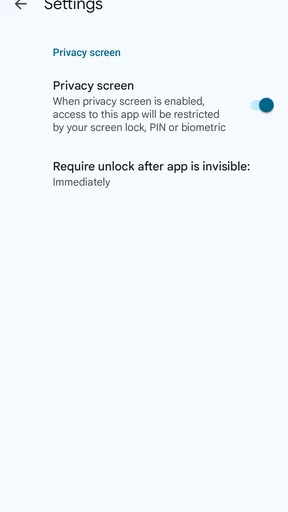
- Lacks biometric lock feature.
- No account recovery option.
- Limited customization options.
FAQs for Google Authenticator
What is Google Authenticator used for?
Google Authenticator is a security app that provides two-factor authentication (2FA) to help protect your online accounts from unauthorized access. It generates time-based one-time passwords (TOTP) on your mobile device, which you use along with your regular password to increase security. This added layer makes it much harder for hackers to gain access to your accounts.
How do I set up Google Authenticator?
To set up Google Authenticator, first download the app from the App Store or Google Play. Then, visit the security settings of the account you wish to protect. Select 'Enable 2FA' or a similar option, and scan the provided QR code with the app. This will link your account to the Authenticator, generating unique codes for login.
Can I use Google Authenticator on multiple devices?
Google Authenticator does not support direct syncing across multiple devices. However, you can manually transfer your accounts to a new device by using the 'Transfer accounts' feature in the app. This requires scanning a QR code from your old device to your new one, ensuring a secure and private transfer.
What happens if I lose my phone with Google Authenticator installed?
If you lose your phone, having backup codes is crucial. These are provided during the initial setup of 2FA and should be stored securely. If you don't have backup codes, you may need to contact each service provider for account recovery options. Some services also offer backup methods like SMS or email.
Does Google Authenticator require an internet connection?
No, Google Authenticator does not require an internet connection to generate codes. The app uses time-based algorithms to create codes, which function independently of a network connection. This makes it reliable in various circumstances, such as when traveling or in areas with poor connectivity.


